
Remote Login Bricked Error
V1.0 – March 2024
| Version | Author | Description |
|---|---|---|
| V1.0 – 2024-03-13 | Yangqiang 1153592 | Initial Version in Chinese |
| V1.0 – 2024-03-13 | Gaowei 1074902 | Document Translation to English |
| V1.0 – 2024-03-14 | Diogo Hatz 50037923 | Document Translation to Portuguese |
| V1.0 – 2024-03-14 | Wisley da Silva 00830850 | Document Review |
Introduction
SMS is a virtual machine migration service provided by Huawei Cloud. With this service, you can migrate VMs from other cloud providers or from on-premises environments to the cloud. SMS migrates virtual machines to ECSs, which correspond to the virtual machine service in Huawei Cloud.
This document aims to list optimizations for VMs migrated from the Azure Cloud provider to Huawei Cloud, as well as to solve the error of a frozen screen in ECSs for the Remote Login functionality in the HWC console.
Configurations
The error in question for the Remote Login to freeze is related to VNC, software for remote access to other computers.

Linux VMs created in Azure Cloud have modified kernels, which may cause conflict issues with VNC software. To make the necessary changes, follow the steps below:
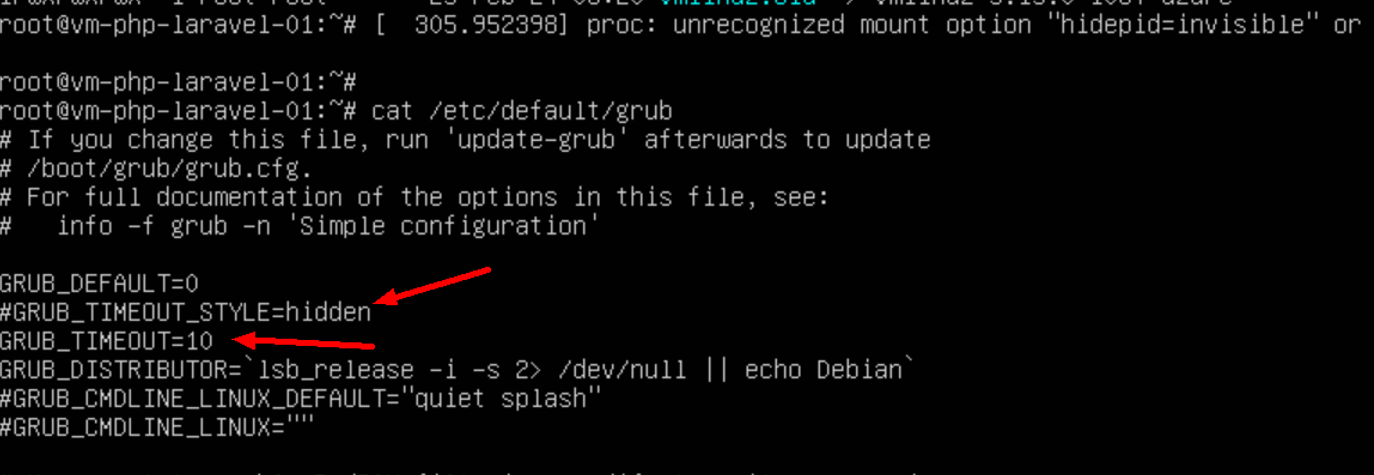
- Connect to the instance via SSH and modify the following parameters: 1.1 Comment out the line GRUB_TIMEOUT_STYLE=hidden 1.2 Modify GRUB_TIMEOUT to 10: GRUB_TIMEOUT=10
Delete the file
rm -rf /etc/default/grub.d/50*
After deleting the files, run the following command to update the grub settings.
update-grub2
Modify the Yum repository to point to the Huawei repository:
sed -i 's/azure.archive.ubuntu.com/repo.huaweicloud.com/g' /etc/apt/sources.list
apt autoclean && apt update
Install the Ubuntu public kernel:
apt install linux-image-generic
After the installation is complete, reboot the ECS and select the generic kernel in the grub screen. Note: It is possible to modify the GRUB_DEFAULT parameter to point to the generic kernel instead of manually selecting the generic kernel when booting the ECS.
Optional Configurations
In addition to the configurations performed above, it is also recommended that the Azure agent, which is installed by default on Azure VMs, be uninstalled, since the agent constantly reports logs to the VNC console, which can affect VNC performance:
Type the following command to uninstall the Azure agent:
sudo apt -y remove walinuxagent